How to buy USDT, step by step
Seven screens from the offer list to your wallet. You pay a seller directly from your own bank account or Telebirr; the seller's USDT is locked in escrow the whole time.
Step by step
The screenshots come from the Collext app on iPhone with a demo account. Offers marked Demo are samples; real offers look the same without the badge. The website works the same way.
Step 1
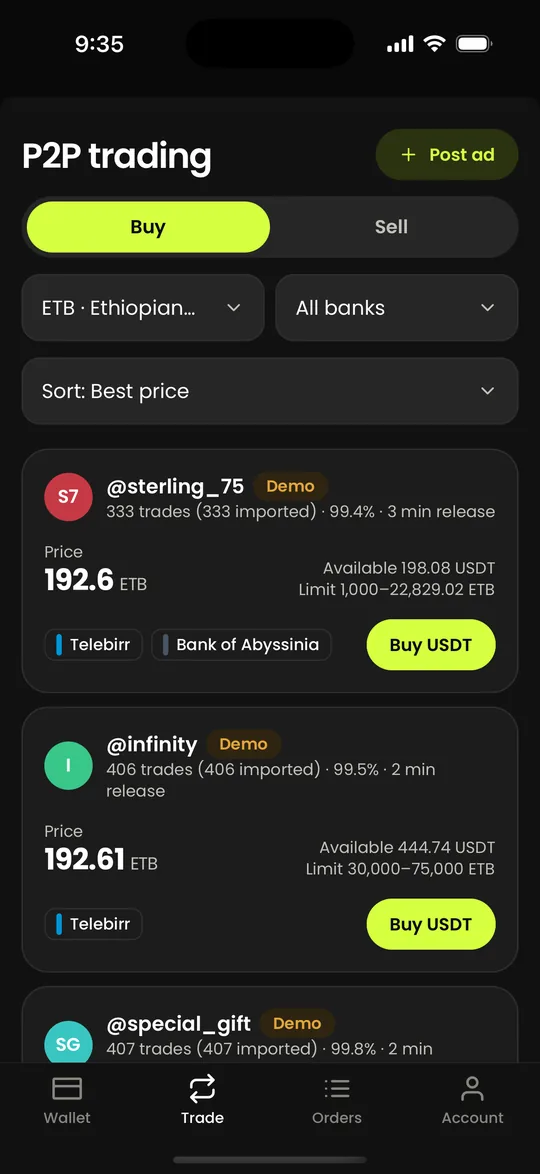
Open Trade and pick an offer
Tap Trade, then Buy. Every offer shows the seller's price for one USDT, how much USDT is left, the limits in Birr and the banks they accept. Sort by best price, completion rate, most trades, volume or fastest release, and filter by currency or bank.
Step 2
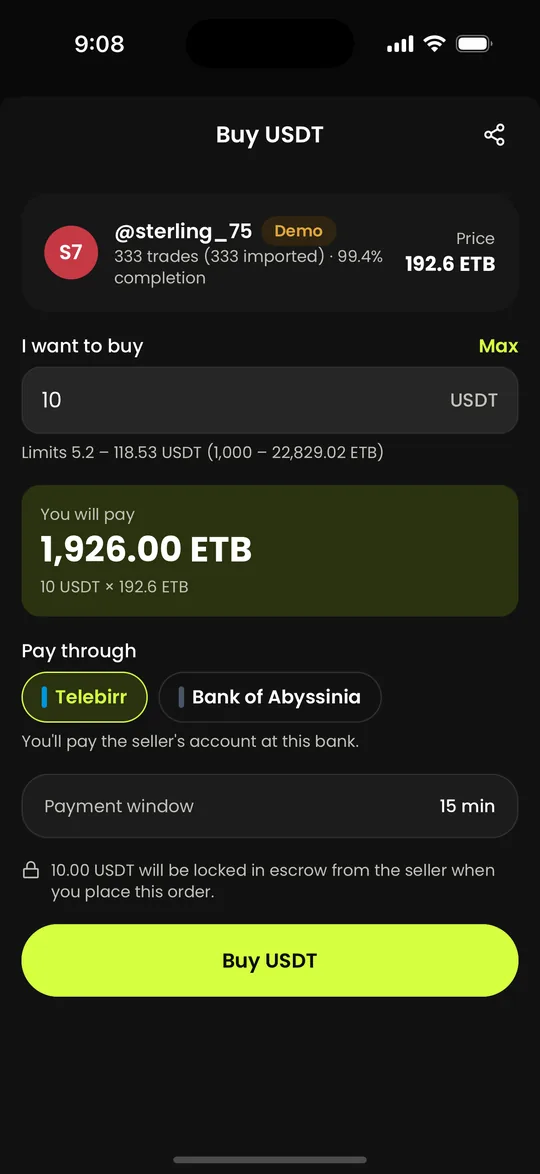
Enter how much USDT you want
Type the amount of USDT. The Birr you will pay is worked out from the seller's price and shown straight away, with the seller's limits under the box. Pick the bank you will pay through and check the payment window, then tap Buy USDT.
Step 3
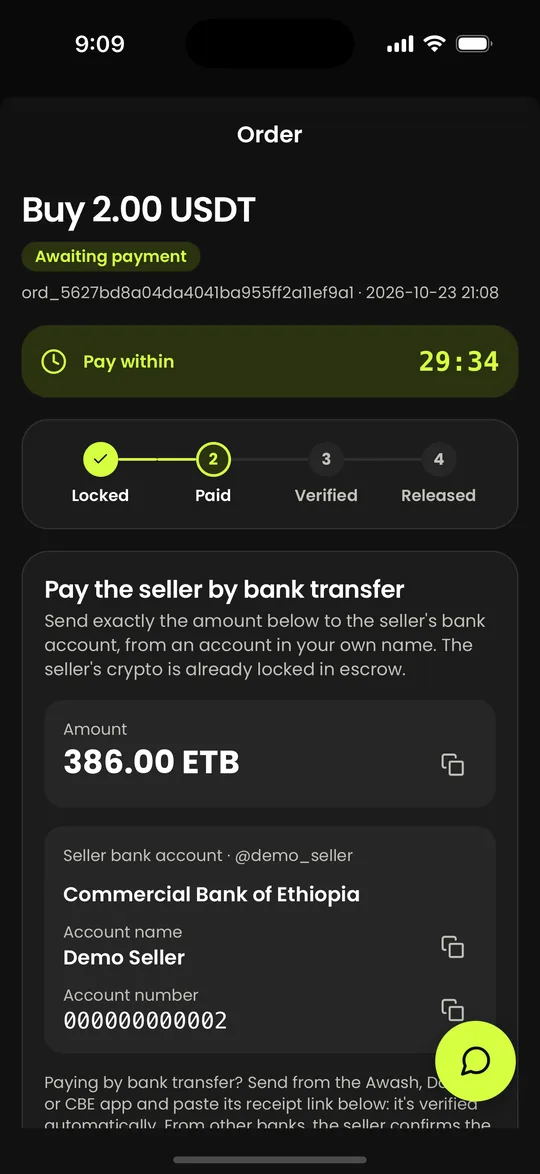
The seller's USDT is locked; pay the seller
As soon as you place the order, the seller's USDT is locked in escrow, so it cannot be sold to anyone else. The order shows the exact amount, the seller's bank, account name and account number, and a countdown. Send exactly that amount from an account in your own name, and put the order ID in the transfer note.
Step 4
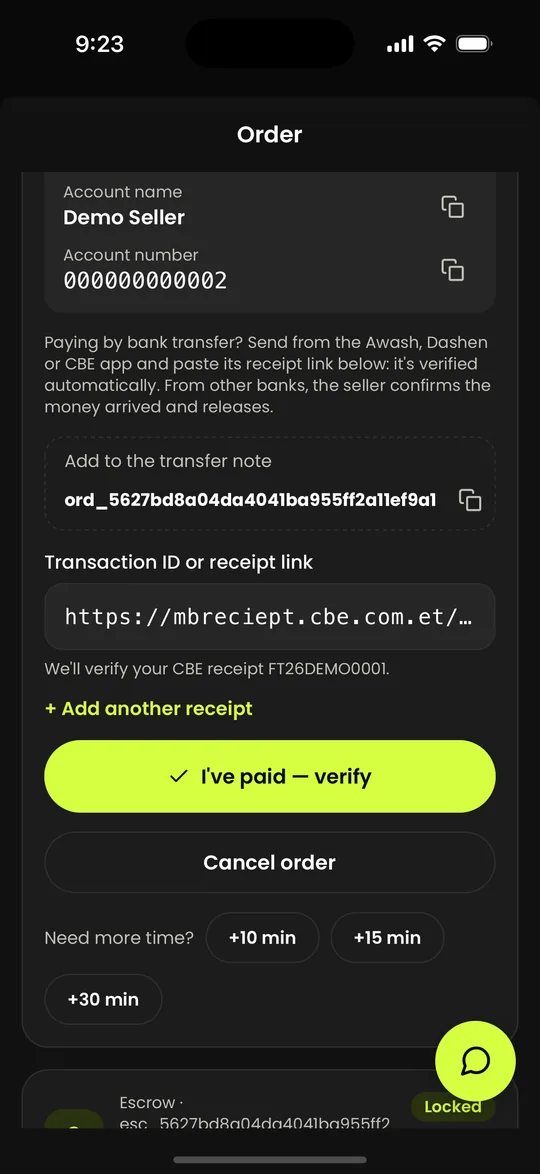
Paste your receipt
After you pay, copy the receipt link from your bank's app (CBE, Awash or Dashen) or the Telebirr transaction ID, paste it into the box and tap I've paid. If you paid in parts, add one receipt for each part.
Step 5
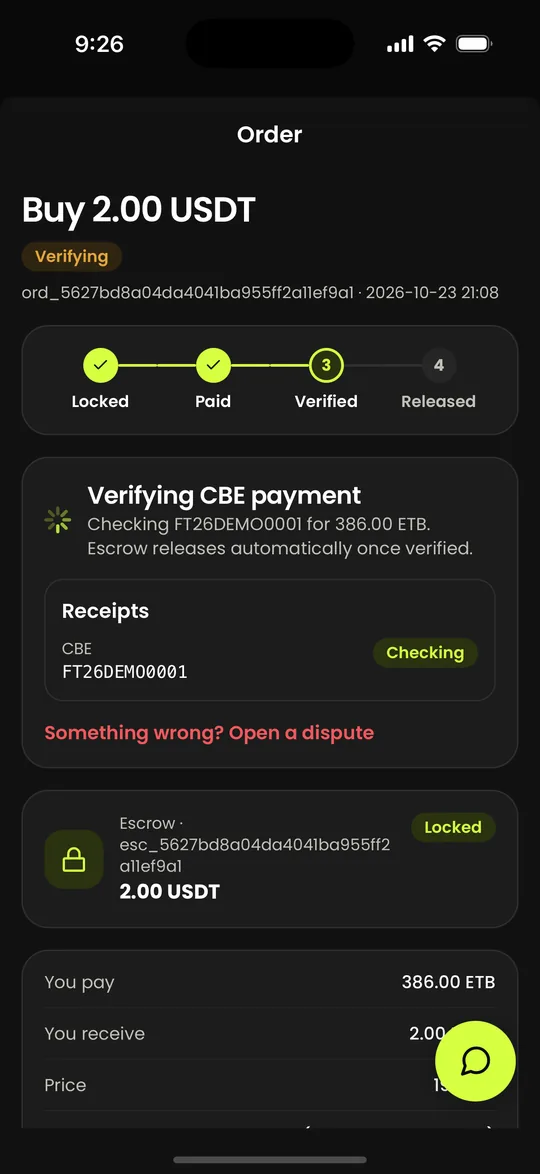
We check the payment
Receipts from Telebirr and from the CBE, Awash and Dashen apps are checked automatically against the bank's own record. A transfer from any other bank is confirmed by the seller. This usually takes a few minutes, and you can leave the screen: you get a notification when the order is done.
Step 6
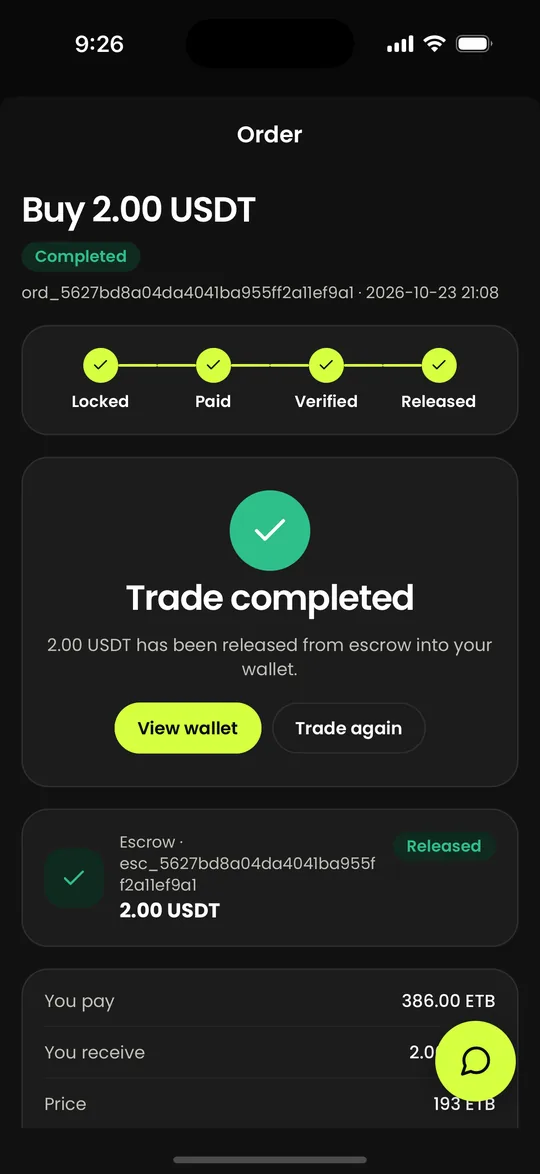
The USDT is released to you
Once the payment is verified, or the seller confirms it, the escrow is released and the order shows Trade completed. Trades are free: you receive the full amount. The service fee is only taken when you withdraw.
Step 7
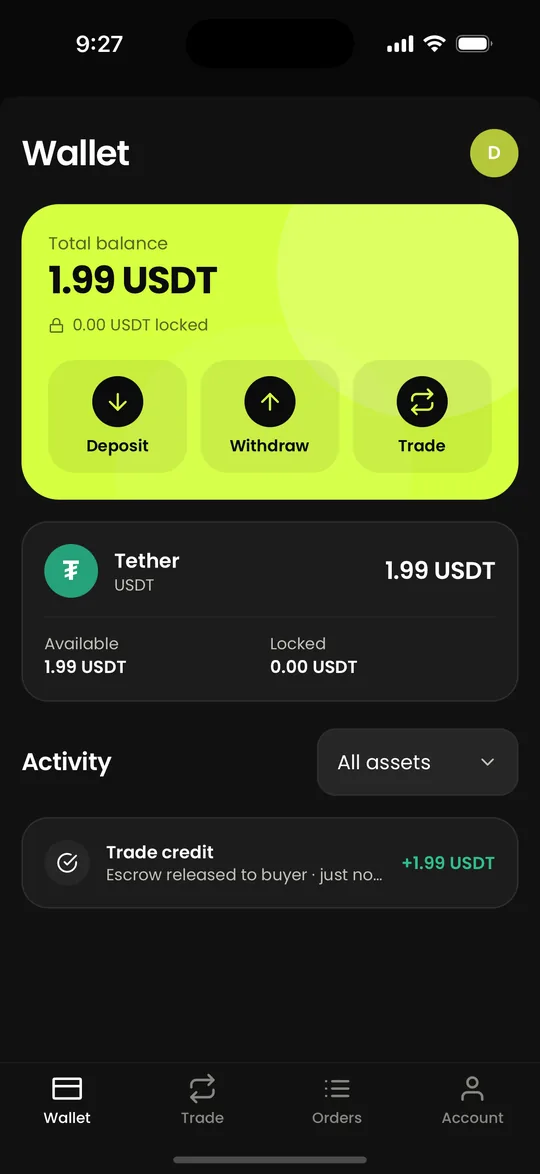
Find it in your wallet
The USDT is in your wallet straight away. Keep it there, sell it later for Birr, or withdraw it to your own address on TRON, BNB Chain, Ethereum or Aptos. The trade shows in your activity.
Before you start
- A Collext account with a confirmed email.
- A Telebirr number or a bank account in your own name: payments must come from an account in your name.
- Birr in that account. There is no minimum beyond what the seller's limits allow.
Stay safe
Only pay the account shown on the order, never one a seller sends you in chat. Keep the conversation in the order chat so support can see it, and never cancel an order after you have paid: open a dispute from the order instead.
Questions people ask
Read next
- How to sell USDT in the Collext app, step by step
- How to deposit USDT to your Collext wallet, step by step
- USDT to Birr rate today (USDT/ETB)
Updated 2026-10-23. Crypto assets are volatile; see our risk disclosure.